
BYLINE · Setup guide
Start with one author and one post.
Create a profile with a name, assign it to one Shopify post and check the result. Add an author bio card when you want to show photos, biographies or reviewer credit.
Maintained by Runs Like New · Updated November 8, 2026
Before you start
Install Byline from the Shopify App Store and open it in Shopify admin. The plan is $7.99 USD/month or $79.99 USD/year, with a seven-day free trial, in addition to your Shopify subscription.
You need permission to manage the app and blog content. Start with a draft post so you can preview the result. Contributor profiles give credit without creating staff accounts or store logins.
1. Create a profile with a name
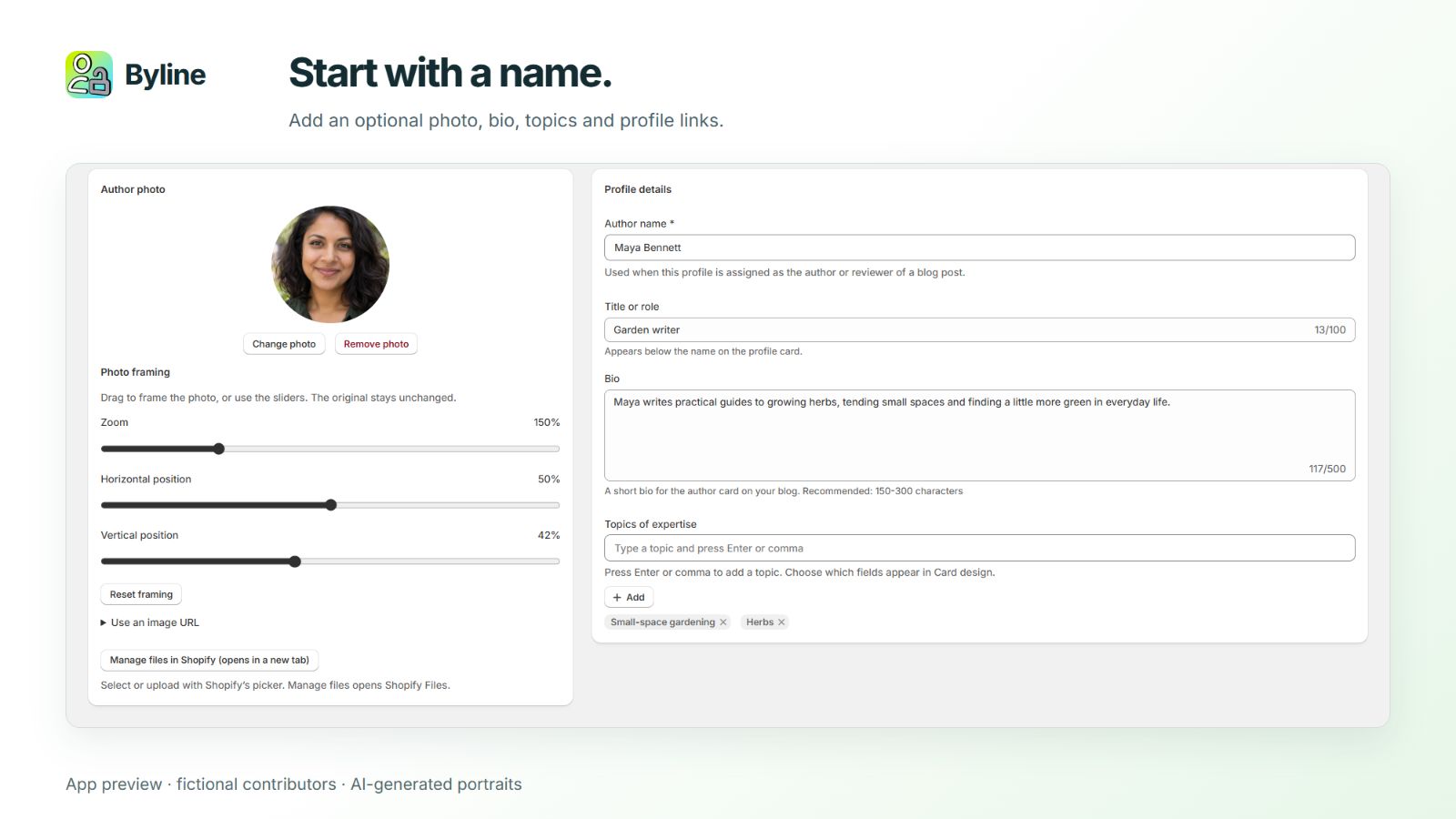
In Byline, open Authors, create a profile, enter the person’s name and save. A photo, role, biography and profile-page link are optional. You can add them later.
Optional: add a photo, bio or profile link
Add a concise biography and a photo you have permission to use. Adjust the photo framing in the preview, then save. Framing changes its display, not the source image in Shopify Files.
Under Links → Add link → Author profile, enter a public page about the person to link their name on the card. Choose Website for a general website icon instead. Neither link is required.
You can create and link an author page when you need one. Byline links to existing pages; it does not generate or maintain an author archive.
2. Assign the author to one post
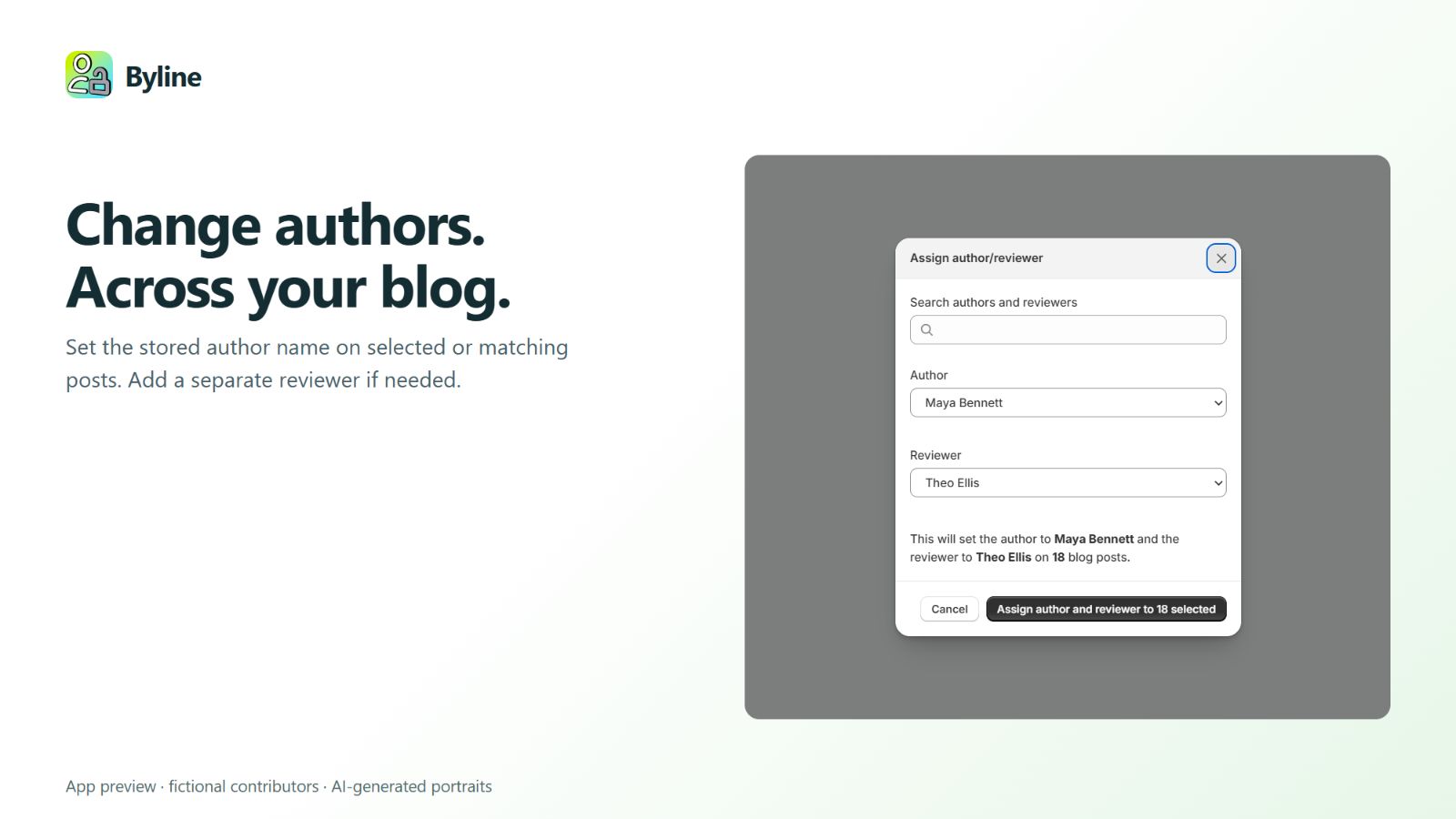
Open Blog posts, select your draft article and choose Assign author/reviewer. Choose the author and confirm. Leave the reviewer empty unless you want to credit a separate person.
Wait for sync to finish: a queued change has been accepted but may not be visible yet. The author assignment updates the author name stored on the Shopify article. A reviewer-only assignment does not change that name.
Optional: assign multiple posts or a reviewer
Byline supports one primary author and one optional, distinct reviewer per post. It does not assign multiple co-authors. Reviewer credit appears on the Byline card.
Select several posts or use a filter-wide assignment. Check the scope and count before confirming: matching posts can include articles beyond the current page.
Bulk-assignment scope and limits
Manual selection supports up to 50 posts per assignment. For a larger set, review the search and filters in Blog posts and use Select all matching. This can include posts beyond the current page. In a profile-filtered list, select individual posts or clear that profile filter before using all-matching actions.
Keep the tab open until all matching posts have been scanned. Accepted updates continue syncing in the background. Review the result counts and sync status, including any skipped or failed posts. The 50-post limit applies to a manual selection, not the total number of articles in the app.
3. Check the author name
Open the same post in Shopify and verify its author name after sync. Preview the article to check the reader-facing byline if your theme displays one. Changing the stored name does not require an author-card block.
For photos, biographies and reviewer credit on the storefront, add the optional card below.
Optional: show an author bio card
You need theme-editing permission and a blog-post template that supports app blocks. Use an unpublished copy of your theme for the first preview.
- In Shopify, open Online Store → Themes and select the unpublished theme’s editor.
- Open the blog-post template used by your assigned article, and preview that article.
- At an available app-block location, choose Add block → Apps → Author Card (Byline). If the article section has no app-block slot, check for a supported Apps section or ask your theme developer about placement.
- Save the unpublished theme and preview the card on desktop and mobile. Publish when you are ready for the theme changes to reach customers.
Check the intended bio, any reviewer credit and any profile or social links you added. The theme controls fonts, spacing and available block positions.
Card design, theme checks and structured data
In Byline shared design mode, blocks use your saved Card design settings. Theme editor mode uses the individual block’s appearance settings. Enable social links in the block if you want its configured icons to appear.
The app’s theme-status check refers to the current live theme; it does not verify an unpublished preview. The demo uses a customized Limina layout, so placement can differ in your theme. If you publish, check the public article too.
Before choosing a structured-data mode, inspect your theme’s existing output. Read the author structured-data guide. Valid markup does not guarantee rankings or AI citations.
Theme versions and placements we checked
On November 6, 2026, we checked a saved Byline profile on a hidden article in our development store, using unpublished themes. In Dawn 16.1.1, the Author Card worked below the blog post’s Title block. In Horizon 4.4.0, it worked after Content. Both passed author-name syncing, visible-card and profile-link checks in desktop and narrow editor previews. Check a real phone and your own theme configuration before publishing.
Both themes already supplied Article structured data, so we selected Author data only for Byline. Each full page contained one Article object and Byline’s Person data. Inspect the actual output when using another version, customizations or an SEO app.
If the card does not appear
- Wrong template: check the article’s assigned template and the theme being previewed.
- No app-block location: confirm that the relevant template/section supports app blocks. Byline cannot insert a slot into every theme automatically.
- Sync still pending: wait for completion and check any error shown in Byline.
- Hidden profile or inactive access: check profile visibility and subscription status. Paid cards pause when paid access ends.
- Settings look unchanged: check the block’s Design source, save the relevant settings and refresh the article preview.
- Native author changed later: a manual Shopify author change can override Byline’s assignment. Check the article and reassign deliberately if needed.
For help, email support@runslikenew.org with the theme name, article URL, expected result and a nonsensitive screenshot. Say whether you are using a live or unpublished theme. Never send passwords, access tokens or customer information.
Frequently asked questions
Can contributors log in through Byline?
No. Profiles provide attribution, not store access, writing permissions or an editorial login.
Does Byline create author pages?
No. Create a page in Shopify or use an existing public profile, then link to it. Maintain its biography and article list yourself.
Can each author have a separate card design?
The Byline design is shared. Theme-editor mode can give a particular app block its own appearance; it is not an automatic per-author design system.
What happens when I cancel?
When paid access ends, published article names remain, paid author/reviewer cards hide and new edits are blocked. Already accepted jobs finish. Cancellation or reactivation does not rewrite all article authors.
How do I restore the original author?
Explicitly unassign the post while editing is available. Byline uses its saved original author. Check the result before bulk changes; deleting a profile, unassignment and cancellation have different effects.
Does reviewer credit include structured data?
In article mode, Byline’s BlogPosting contains a mainEntityOfPage WebPage object whose reviewedBy refers to the assigned reviewer’s Person data. People-only mode emits Person data without that page-level review relationship; off mode emits no Byline structured data. Read the schema guide and check the full page alongside your theme’s and other apps’ output. Reviewer credit is not an approval workflow or verified expertise.
Is reviewer credit verified expertise?
No. You are responsible for accurate identities, roles, qualifications and review claims. Byline displays the information you supply.
Meet the people behind your blog.
Byline is an author-profile app for Shopify by Runs Like New. Install it from the Shopify App Store with a 7-day free trial.
Install on Shopify